
Once again, after resetting my laptop, I decided to set everything up properly and keep all the configs in one place. I like the Gruvbox theme — warm, easy on the eyes, and readable at any time of day. I started there. Then I looked for a lighter terminal: I used iTerm2 before, but it got too heavy and slow to start — so I chose Ghostty.
This article covers why this stack, how to set it up, and what settings to use for a ready-made development and DevOps environment.
Why This Stack
Ghostty — a fast, cross-platform terminal with native UI and GPU acceleration. Starts instantly, doesn’t use much memory, supports ligatures, themes, and low input latency. After iTerm2, the responsiveness difference is very noticeable.
tmux — terminal multiplexer: sessions, windows, and panes in one place. You can detach from a session and reattach from another device — everything stays where it was. Handy for long-running tasks, logs, and multiple projects at once.
Neovim — editor with LSP, completion, and familiar vim-style controls. Works the same locally and over SSH, which matters for a single workflow.
zsh + Oh My Zsh + Powerlevel10k — comfortable shell and informative prompt without much setup.
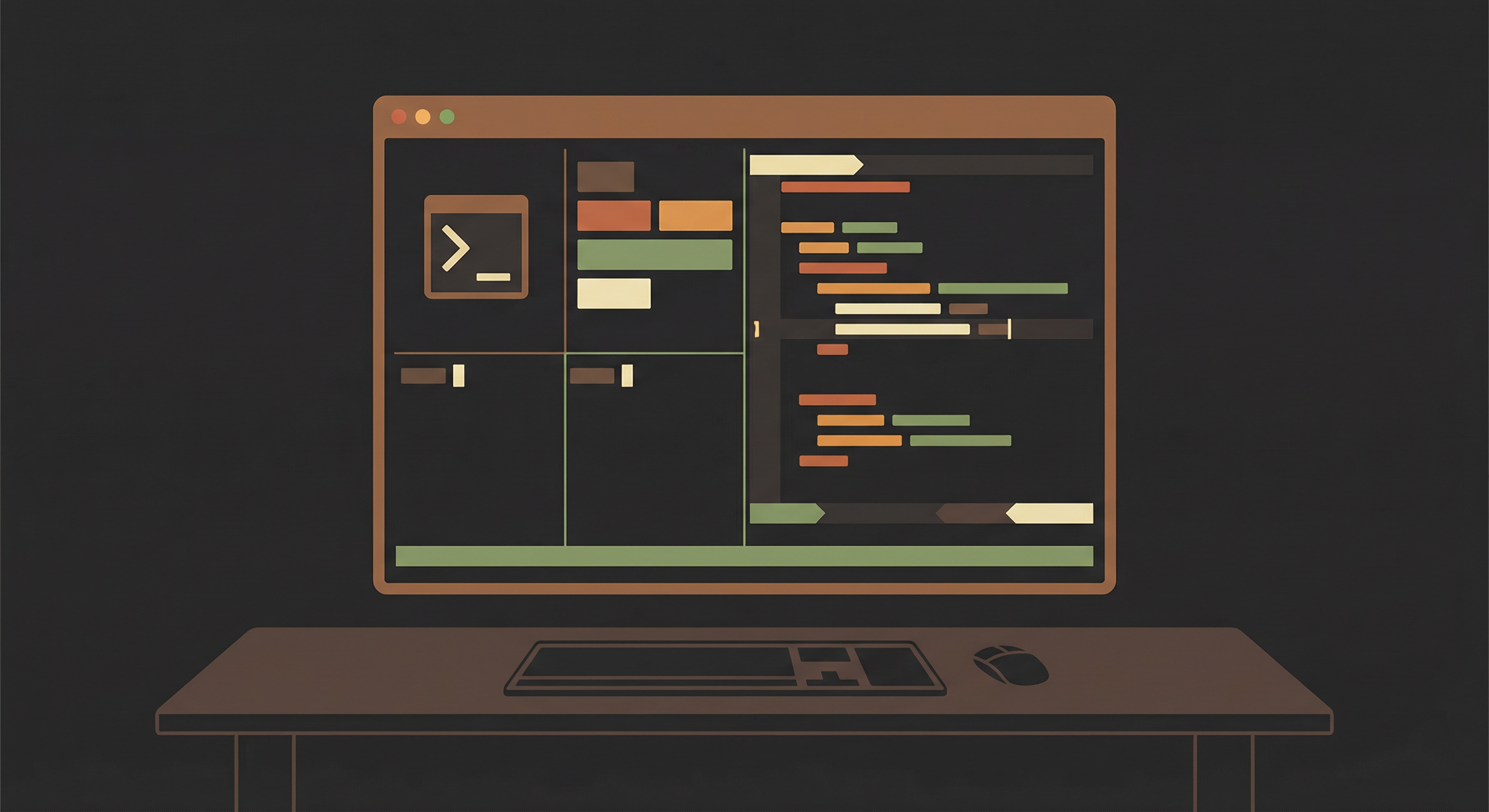
Together this gives one environment: one terminal, one theme (Gruvbox), one set of key bindings. Ideal for daily development and DevOps: code in Neovim, logs in a tmux pane, commands in another.
Contents
- Installing dependencies
- Ghostty configuration (Gruvbox)
- tmux configuration
- zsh + Oh My Zsh + Powerlevel10k
- Neovim setup (vim-plug, Gruvbox, LSP)
- LSP servers
- Plugins and extensions: where and why
- Hotkey cheatsheet
- Typical DevOps workflow
Installing Dependencies
Install Homebrew if you don’t have it:
/bin/bash -c "$(curl -fsSL https://raw.githubusercontent.com/Homebrew/install/HEAD/install.sh)"Install the tools:
brew install tmux neovim git fzf bat eza node
brew install --cask ghostty font-jetbrains-mono-nerd-fontJetBrains Mono Nerd Font is needed for prompt icons and code ligatures.
Ghostty Configuration (Gruvbox)
Config file:
~/.config/ghostty/configCreate the directory and file:
mkdir -p ~/.config/ghostty
nano ~/.config/ghostty/configExample Gruvbox config:
font-family = JetBrainsMono Nerd Font
font-size = 14

window-padding-x = 6
window-padding-y = 6

background-opacity = 1.0

copy-on-select = false

scrollback-limit = 10000000

cursor-style = block

term = xterm-256color

macos-option-as-alt = true

background = #282828
foreground = #ebdbb2

cursor-color = #ebdbb2

selection-background = #3c3836
selection-foreground = #ebdbb2

palette = 0=#282828
palette = 1=#cc241d
palette = 2=#98971a
palette = 3=#d79921
palette = 4=#458588
palette = 5=#b16286
palette = 6=#689d6a
palette = 7=#a89984
palette = 8=#928374
palette = 9=#fb4934
palette = 10=#b8bb26
palette = 11=#fabd2f
palette = 12=#83a598
palette = 13=#d3869b
palette = 14=#8ec07c
palette = 15=#ebdbb2Restart Ghostty after saving — the theme will apply.
tmux Configuration
Config file: ~/.tmux.conf
Example settings for Ghostty and 256 colors:
set -g mouse on
set -g history-limit 200000

set -g default-terminal "screen-256color"

set -ga terminal-overrides ",xterm-256color:Tc"
set -ga terminal-overrides ",xterm-ghostty:Tc"

set -sg escape-time 0

set -g focus-events on

bind r source-file ~/.tmux.conf \; display "reloaded"Reload config without leaving tmux: Ctrl+b, then r.
zsh + Oh My Zsh + Powerlevel10k
Install Oh My Zsh:
sh -c "$(curl -fsSL https://raw.githubusercontent.com/ohmyzsh/ohmyzsh/master/tools/install.sh)"Install Powerlevel10k theme:
git clone --depth=1 https://github.com/romkatv/powerlevel10k.git \
${ZSH_CUSTOM:-$HOME/.oh-my-zsh/custom}/themes/powerlevel10kIn ~/.zshrc set the theme:
ZSH_THEME="powerlevel10k/powerlevel10k"After restarting the terminal, run the prompt configurator:
p10k configureNeovim Setup (vim-plug, Gruvbox, LSP)
Create config:
mkdir -p ~/.config/nvim
nano ~/.config/nvim/init.vimMinimal example with Gruvbox, LSP, and Telescope:
set number
set relativenumber
set mouse=a
set expandtab
set tabstop=2
set shiftwidth=2
set termguicolors

let mapleader=" "

call plug#begin(stdpath('data') . '/plugged')

Plug 'morhetz/gruvbox'
Plug 'neovim/nvim-lspconfig'
Plug 'hrsh7th/nvim-cmp'
Plug 'hrsh7th/cmp-nvim-lsp'
Plug 'nvim-lua/plenary.nvim'
Plug 'nvim-telescope/telescope.nvim'

call plug#end()

colorscheme gruvboxInstall vim-plug:
curl -fLo ~/.local/share/nvim/site/autoload/plug.vim --create-dirs \
https://raw.githubusercontent.com/junegunn/vim-plug/master/plug.vimInstall plugins: open Neovim and run :PlugInstall, or from the terminal:
nvim +PlugInstall +qallLSP Configuration (Neovim 0.11+)
Add this block to the same init.vim for LSP (TypeScript and Python):
lua << EOF
local capabilities = require("cmp_nvim_lsp").default_capabilities()

vim.lsp.config("ts_ls", {
  capabilities = capabilities,
})

vim.lsp.config("pyright", {
  capabilities = capabilities,
})

vim.lsp.enable({
  "ts_ls",
  "pyright",
})
EOFInstall LSP servers globally (or via Mason, etc.):
npm install -g typescript typescript-language-server
npm install -g pyrightPlugins and extensions: where and why
In this stack, plugins are used in zsh (Oh My Zsh + themes) and Neovim. Ghostty and tmux use config only, with no separate plugin system.
zsh: Oh My Zsh and Powerlevel10k
| What | Where used | Why |
|---|---|---|
| Oh My Zsh | zsh shell | Framework: easy config, plugin/theme catalog, auto-updates. |
| Powerlevel10k | Oh My Zsh theme (ZSH_THEME) | Fast, informative prompt: git status, time, path, venvs — all in one line. |
The other tools from brew install (fzf, bat, eza) are standalone programs in PATH, not plugins: fzf for fuzzy file and history search, bat for syntax-highlighted terminal output, eza as a modern ls replacement.
Neovim: plugins (vim-plug)
| Plugin | Purpose |
|---|---|
| vim-plug | Plugin manager: install, update, lazy-load. Used via call plug#begin() / Plug 'repo/name' / call plug#end(). |
| morhetz/gruvbox | Color scheme. Warm colors, good readability, matches Ghostty terminal. Enable with colorscheme gruvbox. |
| neovim/nvim-lspconfig | Config for Neovim’s built-in LSP client. Connects language servers (ts_ls, pyright, etc.) with minimal code. |
| hrsh7th/nvim-cmp | Completion engine: shows a menu of suggestions (from LSP, buffer, file paths). Works with sources like cmp-nvim-lsp. |
| hrsh7th/cmp-nvim-lsp | LSP completion source for nvim-cmp. Feeds methods, variables, arguments from the language server. |
| nvim-lua/plenary.nvim | Lua library for plugins: async helpers, utilities. Required by Telescope and many other plugins. |
| nvim-telescope/telescope.nvim | Fuzzy finder: files, text in project, buffers. In this article bound to Space+f (files) and Space+g (text search). |
Summary: vim-plug installs and loads plugins, gruvbox provides the theme, nvim-lspconfig wires up LSP, nvim-cmp and cmp-nvim-lsp handle LSP completion, plenary.nvim is a dependency, telescope.nvim is for quick file and text navigation.
Hotkey cheatsheet
A full reference for daily use with Ghostty + tmux + Neovim.
Ghostty
Windows and tabs
| Action | Keys |
|---|---|
| New window | Cmd+N |
| New tab | Cmd+T |
| Close tab | Cmd+W |
| Next tab | Cmd+Shift+] |
| Previous tab | Cmd+Shift+[ |
| Fullscreen | Cmd+Ctrl+F |
Move window (when titlebar is hidden): Cmd + drag with mouse.
Copy / paste: Cmd+C / Cmd+V.
tmux
Prefix: Ctrl+b
Sessions
| Action | Command / shortcut |
|---|---|
| Create session | tmux new -s dev |
| List sessions | tmux ls |
| Attach | tmux attach -t dev |
| Detach | Ctrl+b d |
| Kill session | tmux kill-session -t dev |
Windows
| Action | Keys |
|---|---|
| New window | Ctrl+b c |
| Next window | Ctrl+b n |
| Previous window | Ctrl+b p |
| List windows | Ctrl+b w |
| Close window | Ctrl+b & |
Split panes
| Action | Keys |
|---|---|
| Vertical split | Ctrl+b % |
| Horizontal split | Ctrl+b " |
| Switch panes | Ctrl+b + arrow keys |
Resize panes: Ctrl+b Ctrl+←/→/↑/↓
Copy mode: enter — Ctrl+b [, select — Space, copy — Enter, paste — Ctrl+b ].
Neovim
Modes: Normal — Esc, Insert — i, Visual — v, Command — :
Save and quit
| Action | Command |
|---|---|
| Save | :w |
| Quit | :q |
| Save and quit | :wq |
| Quit without saving | :q! |
Navigation: up k, down j, left h, right l, line start 0, line end $, file start gg, file end G.
Editing: delete line dd, delete word dw, undo u, redo Ctrl+r, yank line yy, paste p. Delete all: ggdG.
Search: search /text, next n, previous N.
LSP: go to definition gd, hover K, references gr, rename Space+rn, code action Space+ca.
Telescope: find file Space+f, search text Space+g.
Example DevOps workflow
Create session: tmux new -s dev. Split: Ctrl+b %. Left pane: nvim ., right pane: kubectl logs -f pod/.... Detach: Ctrl+b d. Reattach: tmux attach -t dev.
Most important shortcuts
Ghostty: Cmd+T, Cmd+W, Cmd+drag.
tmux: Ctrl+b c, Ctrl+b %, Ctrl+b d.
Neovim: i, Esc, :w, :q, dd, gg, G, gd, K.
Typical DevOps Workflow
One Ghostty terminal, one tmux session, several panes:
Ghostty
 └── tmux (session dev)
      ├── Neovim — code
      ├── kubectl logs / tail
      ├── terraform / ansible
└── shellThis keeps the editor, logs, and commands in one place, and you can detach and reattach when needed.
Summary
The stack is ready to use:
- Ghostty — fast terminal with Gruvbox theme
- tmux — sessions and panes without losing context
- Neovim — editor with LSP and completion
- Powerlevel10k — convenient prompt
- Gruvbox — one theme across the whole environment
If you want more detail on any of the configs or to adapt them, say so in the comments — we can spin that into separate posts.